
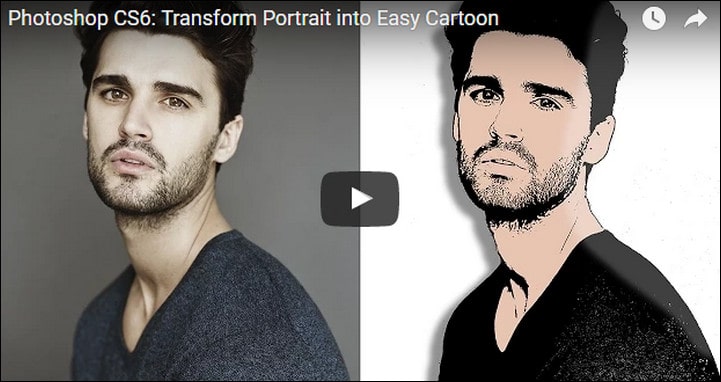
There are tons of tools available online that can turn an image into a cartoon drawing.
Some are good and some are bad and you may play around with them to see if one of them can create the right effect. However it is also possible to do it in Photoshop and it is very easy and only takes 2 minutes. For the effect to be really good however you need images that have a good amount of variation. To illustrate this I have picked an image where the hair, the stubble and the sunglasses are perfect for the cartoon transformation.
This technique can be very useful for making fun with your kids, changing your gravatar image to something that is you, but still isn’t too personal, making graphics for website designs that need a cartoon-ish look and feel and where you can’t afford a professional cartoonist etc.[exec]$filestr = file_get_contents(‘http://www.tripwiremagazine.com/googleadsensebelowmoretag.inc’);echo $filestr;[/exec]

Check out me favorite Photoshop cartoon tools here
We have also added a short step by step tutorial here:
Step 1: Apply the filter Artic>Poster Edges as shown below. Play with the settings to get it right for your image.
Step 2: Adjust the Brightness & Contrast with the values: Brightness Value: 15 Contrast: 35. Image>Adjustments>Brightness/Contrast
Step 3: Apply filter Artic>Cutout
This is it… it is that simple.
As you can see below the exact same process can be used on items…like e.g a car and some environment.

Lars started tripwire magazine back in January 2009. He is really passionate about web design, web development and loves to look into new technologies, techniques, tools etc. and to write articles for his readers.



this is awesome!!its easy to do!! i learn another thing to do with my photos!!!
awesomeeeeeeeeeeeeeee,i just want to edit photos like this…………………
OMG I have been doing another technique that takes ridiculously long. THANK YOU for this tutorial. Such a time saver!
nice simple tut with brilliant results. thanks for the share!!!
This is just plain awesome
I have been looking for this effect from like the last time I saw Tropic Thunder, I really liked the images in the end. Tried my hand, failed
Googles, got poor effects of Gaussian Blur, useless piece of shit crap those are, yours is the really awesome tutorial.
Thanks a ton man, you really made my day, Cheers 🙂
Thank you very much.. so simple.. less was definitely MORE!!! much appreciated!!!! I did not need to build a clock just know what time it is.. lol… beautiful explanation. Click click click… helped me save a lot of time and trouble….
You are welcome Tric and thank for the feedback!
Really enjoyed playing around with the effects and look of some images along with this tutorial. Thanks for sharing!
I’d love to see a tutorial this well-organized for using Photoshop to imitate the look of tilt-shift photos.
Thanks for your feedback Dave. I like to play with this myself.