
In this article we showcase the best WordPress themes created to date.
A website is an essential part of most businesses today. A company of any type and size need a good platform to reach new and existing customers.
A platform for building a strong brand and communicate the voice of the company. A good-looking user-friendly website does this job like nothing else.
We see a lot of successful companies build their website on WordPress. WordPress has served website owners for more than 13 years and it is still growing stronger. Today it is supporting more than 60 million websites. No doubt, it is one of the most popular content management systems around.
You can also build your website using WordPress and you don’t have to be a skilled web designer. The way most people get started is to install one of the best WordPress themes available. This way your website will be up and running in hours, not days.
How to choose a WordPress theme for your needs
What is best for you, may not work for others. WordPress can be used to create all sort of sites. You will notice that most themes caters to a specific niche or website type. For instance, if you’re building a website for a creative agency you need a theme that supports an image rich layout. So, before you move on to the themes. Lets talk about what is important to consider when deciding on a theme for your website.
I have listed our rules below. We use them when we look for a new WordPress theme ourselves.
- Rule #1: Your WordPress theme should have a simple design that complement the content of your internet site
- Rule #2: Your WordPress theme has to be responsive and look great on all devices / browsers – search engines and your visitors will expect this from you
- Rule #3: Your WordPress theme has to be optimized for SEO and ultra fast loading – faster websites rank higher in Google and visitors leave slow websites
- Rule #4: Your WordPress theme should have solid support options, good documentation and continuous updates – this is crucial if your’re not a web developer yourself
- Rule #5: Your WordPress theme should have high ratings and positive reviews – looking at reviews is always a good indicator
- Rule #6: Your WordPress theme has to have the features you need or work well with plugins that can give you the features
Step 1 should always be to get a good overview of what you want. Maybe you even want to sketch-out your new website and describe the most wanted features. Then I recommend that you do some research and look at themes from different theme developers. This will give you a good overview of the options compared to your needs.
If you’re lucky you might be able to find a free theme that can solve the job. It is indeed possible. But most premium WordPress themes are affordable and they often outperform free themes.
Let’s have a look at the Best WordPress themes
To help you get started I created a large collection of multi-purpose themes. They work fantastic for most website types and they all have exceptional design. As you will see they also have an amazing list of features, but not all of them will be a perfect match for your website.
Disclosure: Please note that some of the links below are affiliate links and I will earn a commission if you purchase through those links (at no extra cost to you). I recommend that you do your own independent research before purchasing any product or service. This article is not a guideline, a recommendation or endorsement of specific products.


Avada Responsive Multi-Purpose Theme

This theme is the best selling theme for WordPress that is available on the market today. To describe the theme briefly, it is user friendly, versatile and can be used for a variety of purposes. In addition Avada has a unique design as the theme package includes a wide array of options that other themes only attempts to have.
The main goal of the theme is to allow you to have a creative, professional and one of a kind website, even if you do not have any coding knowledge. The flexible collection of options that comes with the theme is partnered with a user friendly interface, which will allow you to build responsive a stunning websites. Avada can do it all because it is not an ordinary theme. It is in fact a robust design tool.
Avada has a clean design that features a fully responsive layout, Fusion builder and top quality set of options.
Divi – Smart & Flexible WordPress Theme

This is my favorite WordPress theme. I just love it, it is one of the smartest, most flexible themes around and it has a huge following. You get the powerful Divi builder, tons of pre-made layouts and furthermore it has a smooth responsive design. In addition it’s packed with hundreds of design controls for setting up the basic layout of your website, including header styles, typography styles, content spacing, footer layout, default colors and so much more.
Authority – Powerful Blogging WordPress Theme

This is an ultra optimized theme for WordPress that will help blog sites gain more trust and authority, no matter what niche you are in. It is patterned the six figure blog of Matthew Woodward and fully endorsed by him. Authority is a theme that can be trusted to boost your brand.
Authority is packed with customization options and features that will make your website achieve more. You can upload your own favicon and logo, add an Apple touch icon, use Metro Icon, and utilize Twitter username. In addition, you can also insert header codes, footer codes and use 4 unique pagination options.
The theme comes with FeedBurner options, enable/disable Ajax quick search, enable/disable responsive function, RTL support and select number of Shop Page products. You can select brand colors, use secondary color scheme, 2 different layout style options, change site background easily, use solid color or pattern as background, upload custom image for background and use parallax effect.
Jupiter – Responsive Multi-Purpose Theme

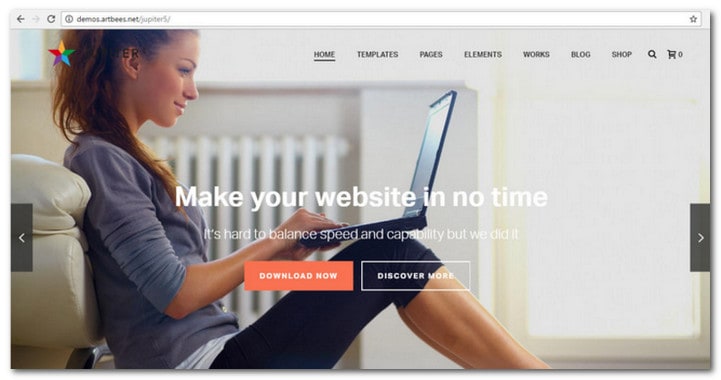
This is a very popular WordPress website theme with a clean and fully responsive layout. It is packed with awesome features such as retina-ready, countless shortcodes and also a powerful drag and drop Page Composer. Finally it is easy to modify layout options and settings from the Admin Panel.
3Clicks WordPress Business Theme

3Clicks is one of the highly flexible and best WordPress themes with a modern and fully responsive layout. You can get your website ready in just a few click by using the included skins and demo content. The theme is very intuitive and it is easy to use and customize.
Nexus Magazine/Blog WordPress Themes

This is a stylish WordPress theme that comes packed with features. It has a lot of custom widgets and content modules to help you build complex magazine pages with ease. Finally Nexus has a nice design and a clean responsive layout based on a strict grid and typographical hierarchy.
The Retailer – Retina Responsive WooCommerce Theme

This is a retinal ready and responsive shop theme that was created for WordPress and WooCommerce 2.0. it includes all that you need in starting a web store quickly.
GridStack – Responsive Agency WordPress Theme

GridStack is also among the best WordPress themes. It is an unique and contemporary portfolio theme for creative people (agencies, artists and freelancers). It features an extra wide and parallax-style that will make you photos, illustrations, videos and audio stand out from the crowd. It is SEO optimized and has an awesome “sticky” menu powered by Ajax.
Metro Magazine Style Best WordPress Theme

The Metro theme is one of the modern magazine-style best WordPress themes with a flat layout built on an optimized mobile responsive platform. The design will put focus on your content and the stylish social features will help to build your audience fast. The theme comes with 5 color styles, 6 layout options, custom background, custom header, custom menus, featured images, fixed width, landing page template and more.
StyleShop eCommerce WordPress Theme

Looking for one of the top WordPress themes for ecommerce website? StyleShop will provide you with all the required tools for launching a successful store online.
Directory Portal WordPress Theme

This is the perfect theme if you are going to build an online directory portal and create lists with categorized items. You will have tons of options and great features to help you get successful with your website.
TruePixel WordPress Blog Theme

This is full responsive theme for WordPress created by MyThemeShop. TruePixel is widget ready and highly customized for usability and speed. It comes with a comes with tons of options and unlimited color schemes.
Kickstart – Retina Responsive Multi-Purpose Theme

KickStart is one of the handsome and best WordPress themes, Kickstart is powerful and a delight to work on. It has been skillfully designed with flexibility, functionality and ease of use in mind.
Infographer – Multi-Purpose Infographic Theme

The Infographer theme is a special one. It is very interesting if you want to create a stunning user experience. You can use the build-in infographics and other interactive elements to create amazing content. You can choose between 4 fluid AJAX animations and you can create unlimited Parallax pages. The theme come with the powerful Revolution Slider, as well.
Parallax One Page Portfolio Theme

Parallax theme is one of the cool one page and best WordPress themes with parallax scrolling effects. With this theme is is easy to showcase your work and services. You will get a responsive design for mobile users and you will be able to impress your visitors with fly-in elements. The theme can be used as a single-page or regular site.
Mineral – Creative Multi-Purpose WordPress Theme

Mineral is among the top WordPress themes. It is very popular and for the right reasons. It has a clean and fully responsive design and it is packed with features like the extensive admin panel. You can easily modify styling, colors, fonts, layouts and other aspects of the theme. It is a flexible theme that will be perfect for creative portfolio, photography, digital products, corporate and business sites.
Magnifique Responsive Blogging Theme for WordPress
 Magnifique is one of the minimal and best WordPress themes. It has a minimalist design and was created with bloggers in mind. There is no need for widgets, sidebars and other complicated settings. You can just concentrate on blogging.
Lucid – Best WordPress Theme

This is a modern and sleek magazine theme that is perfect for displaying a lot of content while avoiding a cluttered atmosphere at the same time. Lucid has an organized layout that makes it easy to read, thanks to its strict grid and clean design.
Bazar Shop – Multi-Purpose e-Commerce Theme
 A creative and fresh theme, Bazar Shop utilizes the WooCommerce plugin for creating a flexible WordPress powered shop. The theme includes tons of amazing features and unlimited layout options.
Nominal WordPress Blog Theme

Nominal is brilliant WordPress blog theme with a responsive design and lot of useful features including, such as, options panel, custom shortcodes and widgets. On top of that the theme is optimized for good SEO and loading speed.
GoodWork – Modern Multi-Purpose Responsive Theme

Absolutely the ultimate and responsive theme for business websites. GoodWork is modern, elegant and pack full of high quality features.
Vidiho Video blog Theme for WordPress

This is a video blogging theme that uses the built in video functionality of WordPress. This feature makes video embedding much easier.
OnePager Multi Purpose Theme
This theme is a Multipurpose responsive one page portfolio theme OnePager is a one page portfolio theme that allows you to showcase all vital information on your homepage. Editing the content is made easy with the use of widgets and native WordPress menus; both of which tie into the theme beautifully.
Free Best WordPress Themes
This section will be updated as son as possible.
Lensa – DEMO
If you are into high-resolution photography this theme is perfect for you! Lensa is a fullscreen WordPress gallery theme. With Lensa you will be able to give your visitors an impressive experience when looking at your images. Lensa has a dramatic fullscreen background slideshow effect and it is fully responsive.
Business – DEMO
This free themes is simple, but very useful WordPress theme that will work perfect for your personal or small business blog. It comes packed with custom widgets, drop-down menus, javascript slideshow and lots of other useful features.
Onion – DEMO
Onion is a free WordPress themes with a simple and elegant design. The design is close to Apple designs and it comes with easy to use administrative panel, custom widgets, slider, menus and lots of other useful features. This is a perfect theme for an Apple fan site or something like that.
Janela – DEMO
This is a simple and stylish free WordPress theme with powerful features. It comes with easy-to-use admin options and useful custom widgets to help you customize your website.
Attitude WordPress Theme – DEMO
Attitude is a responsive, clean, retina ready and simple WordPress theme. It can adapt automatically to mobile devices and tablets, and comes with an elegant and easily customizable design.
Custom Community – DEMO
Custom Community will allow you to stand out from the rest. This theme is ready for your portfolio, social network, shop or blog website.
Montezuma Free WP Theme – DEMO
A customizable and responsive theme, Montezuma is optimized with HTML5 and CSS3. You can create or edit new page templates on the web even without FTP uploads. In addition, you can also incorporate custom widget areas anywhere.
Pinboard Free WordPress Theme – DEMO
An elegant and crafty theme, Pinboard will allow you to enjoy an advanced grid system and theme framework. There is practically unlimited styles and layout options, which make this theme perfect for showcasing your portfolio and other multimedia elements.
Photography WP Theme – DEMO
This is an elegant and simple template that is a perfect solution for a photography portfolio blog. It comes with a Shared Bar that will allow your visitors to share your blogs with friends.
Swift Basic – DEMO
This theme is the free form of Swift, which is the developer friendly, most advanced and fastest loading SEO WordPress theme. It comes with tons of intuitive customization options that provide infinite amount of layouts.
Politica WP Theme – DEMO
A powerful but simple WordPress theme, Politica is designed for politic blogs. The theme has a variety of custom widgets and user friendly admin options.
How to install a WordPress theme
Installing a WordPress theme is actually not hard at all. Go to “Appearance” and click on “Themes”. Then click on “Add New.”

If you find a free theme in the WordPress.org catalog you can just install from the dashboard. Just click on the theme you want and you will see an “install” button. If you want to install a premium theme you need to download the theme’s zip file to your own pc so you can upload the theme.

When the theme is uploaded you can click the “live preview” button and see what it will look like even without activating it.
Please be aware that you will need to activate a theme before it will work on your website. You need to create navigation, upload logo and other setup work before your site is ready, but it is easy and fun to do. For more detailed information, please see our beginner’s guide on how to install and setup your WordPress theme.
Let’s have a conversation about WordPress themes
I am sure there are more high quality WordPress themes out there that belongs in this list. Please let me know in the comment section if your favorite theme is missing. Further, please share this post with your friends and co-workers.
Author : Alex Naz


Alex Naz is a professional writer with a proven track record. He is a creative blogger who is passionate about web design, SEO and web development. He is also a family man and has a passion for the outdoors.





Hi it very informative —– keep posting what is trending in
digitalmarketing industry
Informative post. Thanks for sharing this post!
I have been researching on the advantages of blank wordpress theme and came across many blogs. I would share few of them as it might be helpful for someone.
https://torquemag.io/2017/11/top-10-blank-wordpress-themes-impressive-advantages/
https://acodez.in/blank-wordpress-themes/
For my website https://web-design-california.com.mx/ I used a wiz https://themeforest.net/item/wiz-the-smart-multipurpose-wordpress-theme/11975026?ref=andy4321 theme, but i’m always looking for more options, thanks.
The list is just great overwhelming , but i am avid fan of DIVI theme. I most use DIVI theme for me & me clients.
Once again nice list & great work
I blog quite often and I genuinely appreciate your content.
This great article has truly peaked my interest.
I’m going to book mark your blog and keep checking for new information about once a week.
I subscribed to your Feed as well.
Your wordpress themes are awesome and I will use some from them. Thanks for sharing very helpful post.
Thanks some of these are really nice, however would you by anychance know how to make them look less like blogs?
Nice post.. but its need a lots of time to learn,can you please summarized it…
it is very googd! I already installed for my web.
Of course, free WordPress themes can’t be compared to premium ones.
Spot on with this write-up, I truly think this web site needs much more attention.
I’ll probably be back again to read more, thanks for the information!
Hi, On my blog http://PhilipSelwood.com I’ve been using the free version of http://www.flexibilitytheme.com/
It’s been very useful because it allows me to change fonts, font colors theme colors and a lot more.
The problem is it’s not mobile responsive and I want to move on but have a theme that allows all the changes I’ve mentioned that can be done with Flexibility.
Could you make any theme suggestions please.
Best wishes
Phil
Thank you for great theme. it very useful for me.
wow, I love co-worker theme. by the way nice collection of wptheme.
You’ve made some good points there. I checked on the net for additional information about the issue and found most individuals will go along with your views on this web site.
Thanks so much for this collection!
TruePixel from MythemeShop looks great
We also had update Alterna V3.0 as a great wordpress theme, please check it.
http://themes.activetofocus.com/demo/?theme=alterna
Hi,
Thanks for sharing. Looks good!
Kind regards¨
Anders
Thanks so much for this post! Really helped my theme hunt.
Amazing list, will definitely bookmark and re-visit several times. Thanks!
A nice collection of themes, I really liked it.
I’m looking for a good theme for food recipes website, Isn’t there any new free themes for Recipe website?
Please provide some best themes for Recipe site.
Great lineup of themes….i’m curious your thoughts on Cyberchimps themes and Weaver 2 Pro. I love both but i see few people talking about them.
Great list! Modernize is one of the best, I’ve installed it on a recent work and is very powerfull.
Thanks for sharing Dustin!
Amazing list of themes in there.I totally love them!Thanks for sharing this with us!
deTube and Gonzo are perfect one.
Whether detube can be used for own videos instead of only youtube,dailymotion etc. videos.
Wp Tube was also best one for video blogs but it is not for own hosted videos.
Thanks
Very useful presentation thanks!!
This is really wonderful collection of best themes!
Nice set of these website tempaltes! elegant themes are perfect!
Aw, this was an incredibly good post. Taking a
few minutes and actual effort to create a good article… but what can I say… I put things off a lot and don’t manage to get anything done.
I want a Theme with less images.. Please suggest any
Thanks…..
The templates are very professional and several styles to choose from (depending on the category of the website), thanks for the post.
Awesome list, dude!
Woah! I’m really digging the template/theme of this website. It’s simple, yet effective.
A lot of times it’s challenging to get that “perfect balance” between user friendliness and visual appeal. I must say you have done a very good job with this. In addition, the blog loads very quick for me on Internet explorer. Superb Blog!
Very nice themes collection thanks again
Thank you! Really really helpful!
Thank you. Elegant Estate is very beautiful!
nice post, i’d like the metro style and responsive web design
I’m contemplating redoing my website in WordPress, however, being new to it, I do not know which theme would be the best as far as functionality is concerned. I need to be able to post video as well as regular blog. It would be great if it was a responsive theme. Any advice will be greatly appreciated.
one touch theme by crumina if the best theme that i already try and WordPress theme by Zerge (themeforest) also worth to mention.
So many themes, so little time! Good to see better themes in one place and I am def going to get a couple. That was 30 minutes well spent to get fantastic web design ideas. thx.
Nice, Elegant themes collection you have,I ll definitely try some of them for my new website.Thanks
Must say a nice collection of new themes. I’ll have to try some of them in my private projects. Keep on with good job!
Very nice collection of themes. I was looking theme for my 2 of websites. And i got it.
Nice collection. Especially form elegant themes. I’ve used some of them for my website.
Great information, thanks a lot. To my mind one of the most creative themes is MetroStyle. I like it more and more every day. Perfect support!
Thank very much,now i was looking for some good WP themes now i have a entire list to choose from.
Hi and thanks for the list! Do you have any information on Hipster? I see it on ThemeForest. I love the way it looks. I’m so new at this, though, that I don’t know how to see if it’s a good and working site. How can I see if I’d get support with it? Thank you! Karen
You are so interesting! I don’t suppose I’ve read through a single thing like that before.
So wonderful to find somebody with some original thoughts on this subject matter.
Really.. thanks for starting this up. This website is something that is needed on the internet, someone with
a bit of originality!
Great theme collection Guys. But, I just found an amazing wp theme on themeforest, http://themeforest.net/item/afternight-a-stylish-minimalist-responsive-theme/full_screen_preview/3846595
This is what i’m looking for. Love it.