
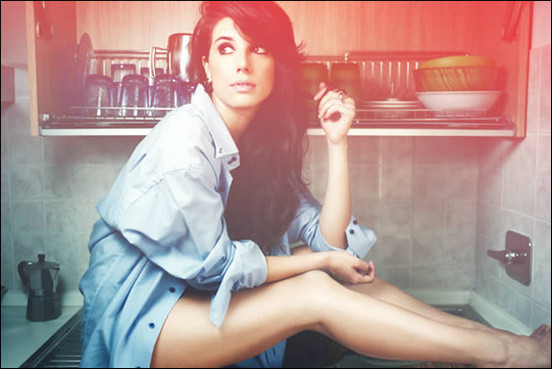
This is a massive collection of tutorials showing you how to create amazing Photoshop effects.
It is amazing what you can do in tools like Photoshop. In most cases, learning new techniques and skills is essential even though it is from a tutorial that is not directly related to the type of designs you typically do.
Many Photoshop effects can be used all round and you will simply extend your “personal toolbox” when you investigate how other Photoshop user suggest a specific task to be done. It may be that you have your own way to do Photoshop effects…but it is also likely that it your results will improve if you look some experts over the shoulder by scanning or following these Photoshop effects tutorials.
I did not add all the Photoshop effects tutorials I know of here as the collection would be too large. Please note: We just updated and checked all links in this article.
If you like Photoshop, make sure to check out the thousands of fully-licensed Photoshop files, brushes and actions over at Envato Market.
I have created other related posts you should check out also e.g. on Photoshop smoke effects, Photoshop text effects, Photoshop water effects. Lets get started!
[exec]$filestr = file_get_contents(‘http://www.tripwiremagazine.com/googleadsensebelowmoretag.inc’); echo $filestr;[/exec]
Photoshop Effects Index
- Light and fire Photoshop Effects
- Perform Photo Manipulation and Retouching
- Image Enhancement and Correction Techniques
Light and fire Photoshop Effects
Photoshop effects can be used to add awesome light and fire to your creations. This is really useful in many different design situations and in particular light effects in web design.
Quick Tip: Create Light Leaks and Lomo Effects Using Actions in Photoshop

In this quick tip tutorial, you will learn how to create light leaks and lomo effects for you photos using actions in Photoshop.
Create a Glowing Light Painting Effect

In this tutorial you will lean an easy, and very fast way, to create a light painting in Photoshop.
Create A Glowing Super Hero
This tutorial shows how he turned a basic illustration into a retro-futuristic artwork in Photoshop. You’ll use the Marquee and Pen tools to create various forms, and generate atmosphere with glow effects made using Adjustment layers and Layer Styles. You’ll also use motion blur for a dynamic feel.
Easy Star Light in Photoshop

Creating an Impactful Disco Party Poster
This tutorial will show how we can create an impactful disco party poster. There are some new methods in making lighting burst and streak effects. We will also touch a little on using the settings in Brushes Panel, so let’s check it out!
Create A Fiery Face Explosion

Learn to create a hot face explosion in Photoshop
Sparkling Hot Girl in Photoshop
It basically mixes some techniques from tutorials like Magic Lighting Effect, Amazing Photoshop light effect in 10 Steps, and the latest Create the MSNBC header effect.
Give a Car Photo Super Slick Lighting Photoshop Effects

Apply some pretty cool light effects to cars or other objects.
Amazing Photoshop Light Effect In 10 Steps
A smokey light effect complete with glowing particles.
Create A Retro Cosmic Design in Photoshop

This tutorial will teach you how to recreate the Retro Cosmic designs made popular byJames White of Signalnoise. All you need is a copy of Photoshop and some time on your hands. In this particular example we’re going to create a retro cosmic rainbow but the techniques explained can be used in combination with any shape and colour.
Awesome digital bokeh effect in Photoshop
This tutorial will show you how to create a digital bokeh effect in Photoshop. The process is very easy and we will be using the super powerful Brush Engine, one of the coolest things in Photoshop.
Iron Man View Interface Effect In Photoshop
This is very close to the amazing effects seen in the movie.
How to Create a Hellacious Flaming Skull in Photoshop

In this tutorial, we’ll go through all the steps of creating a flaming skull in Photoshop.
Achieve Brilliant Lighting Effects in Photoshop
Lighting effects can make or break any digital artwork. When done properly, lighting can add visual impact, draw the viewer’s eye, convey depth and emotion, and tie together all the elements of the piece for a quality finished result. However, achieving brilliant lighting is not always an easy task, particularly for newer digital artists. Perfecting contrast, color variation, sharpness and depth will help make your digital art more enticing.
Design an Intense Particle illustration using Photoshop
In this tutorial, I thought I would show you a simple process of manipulating a image with lighting effects and incorporating brushes too. This tutorial will bid you a step by step guide on how to achieve the illustrated outcome.
Lighting Shutter Text Effect Tutorial
In this photoshop text effects tutorial artist will teaches you how to create this beautiful slow shutter text effect.
How to Create a Flaming Photo Manipulation

On this tutorial, you’ll manipulate a picture so it looks like a woman burning in flames. The idea behind this manipulation was to create a nice looking illustration, only by using simple techniques and tools such as the Brush tool and Warp command.
Photoshop Tutorial: Create scorching Photoshop effects

Fake an image of a burning man in Photoshop with these flaming brilliant techniques from Fabio Sasso
Realistic Scorching Fire Effect
This Photoshop text effect tutorial show you trick that you can use to give your text a scorching reality.
Advance Glow Effect
In this tutorial, we’re going to create some really sharp-looking glow effects using a combination of layer styles, the Pen Tool and Color Blending. The end effect is quite stunning and hopefully you’ll pick up some tips you didn’t know before.
Drawing an Abstract Lightbulb

How to create a glowing Lightbulb in Photoshop
Create a glowing effect scene in photoshop

This tutorial will teach you how to come up a cool glowing effects on your artworks
Water Spirit – drawing fire
This tutorial will show You how to place a fire on someone’s hands
Electrifying Energy Beams
Here’s a great effect that will bring some energy to your subject. We’ll be wrapping this singer’s arm with a glowing beam of light, adding sparkles, and adjusting the colors to make it all seem magical.
The Making of “Constant Slip”

This photoshop effects tutorial will take you through the creative process of making intriguing light effects and applying them in your work
Cool neon typography tutorial
In this tutorial, we are going to create a basic typography artwork with neon effect and some cool lighting background to give the neon text effect and a suitable environment around it.
Perform Photoshop Effects, Manipulation and Retouching
Add Textured Ornaments to Hand-Drawn Art
In this tutorial, German artist Andreas Preis explains some of the techniques he used in his Life series of illustrations, which combine beautifully hand-drawn illustrations and digital techniques.
Creating an Abstract Watercolor Wallpaper
There are plenty of ways to create a Watercolor Effect in Photoshop. Some are very cheesy and you can easily tell that a simple filter has been used. In this tutorial, we will be using Layer Masking. It is one of the most fascinating and powerful Photoshop method, to use layer masks in your designs.
Create a Devastating Twister With Photo Manipulation Techniques
If you’re looking to create a really nice photo manipulation, often you will have to combine several photos and apply a few effects to get your desired look. In today’s tutorial I decided to combine a few photos that I took while I was traveling to create a devastating tornado consuming everything in its path.
Create frozen liquid Photoshop effects

This tutorial will show your the techniques to give almost anything a liquid or frozen fluid effect
Realistic Water Reflection
How to easily add a realistic water reflection to any photo.
How to Create a Severed Arm in Photoshop

In this tutorial we will be learning how to create a severed arm with fleshy stumps and strings of sinew. This will be created by using some basic Brushes and Layer Masks
Crack And Peel
How to make skin look cracking and peeling
Transform A Person Into An Alien
How to create a very cool looking alien using Adobe Photoshop
Making a Book of Magical Playground Scene
This tutorial will show how to create a fantasy book scene. We will be using various advanced Photoshop techniques to make the composition as realistic as possible.
Creating Energy Spheres
Learn how to add cool Energy Spheres in Photoshop
How to Create a Flying Land Illustration On Fire

This tutorial is about creating a fantasy illustration using some dragon images and a few cliffs for creating the land. We also add lava and fiery effects. So, let’s get fired-up for this one!
Awesome Milk Typography Effect in Photoshop

Illustrator and Photoshop tutorial showing how to create splashing milk photoshop effects
Creative Photoshop Animal King Photo Manipulation Tutorial

In this photoshop tutorial, you’ll learn how to mash up a series of photos in a highly creative poster based on a famous painting from the 1800?s
Luxury retro car poster with paint splashing effect. Talbot-Lago T-150 CSS
How to create a cool paint splashing effect in photoshop
How to Create a Chilling Photo Manipulation in Photoshop

This photoshop effects tutorial will teach you how you how I created a fantasy photo manipulation called “You Can Not Frost The Time” with using several Photoshop tools such as Color Range, different blending modes, and more.
Create Fantastic Stone Textures in Photoshop

Tut will show you a quick and easy way to make a realistic stone texture with the help of the Liquify Filter.
Creating a fragmented golden phone
In this tutorial, it is going to teach you how to make a nice fragmented golden phone. Firstly, you need to prepare a mobile phone image. And then you can start the add some nice photoshop effects. You can also use the same idea for other images.
How to Make a Vector – Style Woman Composition
Vector graphics design is one of the leading styles for print magazines and in titling of movies right now. In this tutorial, we are going to cover the entire body of a woman with stock vector art by employing some of the basic tools and blending options in Adobe Photoshop. We will also need Adobe Illustrator to open the vector files and to provide a source for importing the vectors into Photoshop.
Photoshop Puzzle Photoshop Effect
In this Photoshop effects tutorial, we’re going to look at how to easily create a Photoshop puzzle effect, allowing us to turn any photo into a jigsaw puzzle! Or at least, we’ll be creating the illusion that the photo is made up of small puzzle pieces, although I suppose you could print the photo afterwards, cut around all the pieces with scissors and make an actual puzzle out of it, but as I like to say, why fumble around with reality when faking things in Photoshop is so much easier.
Displacement Effects
How to use a variety of filters and techniques to produce an image in an experimental style.
Photo retouching
In this tutorial we are going to practice some amazing Photo effects using Wacom tablet. Of course you will be able to do it with PC mouse. But graphic tablet will save you a lot of time.
Eery-Eye Photo Manipulation
In this Photoshop tutorial I will be walking you through the making of an interesting art piece, “The Eye, the Key of the Soul.”
Devil’s Eyes
Turn human eyes into devil eyes.
How to Turn Humdrum Photos into Cinematic Portraits
Learn how to add drama or a cinematic quality to a regular portrait photo.
Dreamy photo effect
In this tutorial we will take a photo and use different color adjustments and something like pattern floral brushes to make it better or to make a different mood to our picture.
Make Photos More Suggestive
Learn how to make the model in this tutorial more suggestive with awesome curves
How To Create An Abstract Floral Explosion in Photoshop

This tutorial will show you how I used several floral stock images and Photoshop brushes to compose a fantastic abstract composition.
How to Create a Cute Green Apple Face Photoshop Effects
Here is a tutorial where you will learn how Create a Cute Green Apple by manipulating some photos.
Drawing a Realistic Human Eye
One of the most difficult part for drawing a portrait is drawing eyes, but it is so difficult. This tutorial will illustrate you step by step to draw a human eye from drafting
Bringing A Stone Statue To Life
How to take a stone statue and alter it to look life-like.
Create a Lady Walking in Night Scene
Whatever you imagine, you can use manipulation to create. This tutorial will show you some tactics to do that. You can use the same idea to implement.
How to Create a Side View Concept Car

This tutorial will be taking you through the steps to create a rendering of a car. It will take you from initial sketch to this stylized polished off piece suitable for a presentation. The time taken to complete such a rendering depends on the complexity and the level of detail on the car. This particular one took me about an hour.
Design a Vintage Radio Icon in Photoshop

In this Photoshop Tutorial, you’ll learn how to design an old vintage radio using simple shapes, gradients, patterns and textures.
Create Simple Cartoon Characters in Photoshop

The use of colourful vector art is a great way to create an accessible and friendly webpage. When done well it is possible to create a rich and vibrant art style which will capture the imagination. This tutorial walk you through the basics to get you going on Photoshop CS and newer.
Create a Retro Pop Art in Photoshop

How to tuen a photo into a cool retro pop art photosop effect
How to Create a Contemporary Style Illustration Without Drawing Skills

This is a really cool and creative tutorial showing you how to create an illustration from existing art elements.
Design a Realistic 3D Baseball Cap in Photoshop

This photoshop effects tut show you how to create a realistic 3D Baseball cap in Adobe Photoshop using the Pen tool, brushes and some nifty tricks.
Realistic Tattoos
This tutorial uses a few basic photoshop techniques, masking, color adjustment, liquify and the resize and transformation tools.
Applying a Realistic Tattoo
There are lots of tutorials on the Web that claim to achieve a realistic tattoo effect. Usually these tutorials instruct the user to import an image they want to use as a tattoo and to set it to overlay. Out of experience I can say that this does NOT look like a tattoo. It looks like…well…an overlayed image.
Using Ink Drops in Your Digital Compositions
We all love Photoshop and its effects, but sometimes it’s great to get your hands dirty when creating elements for your graphics. Ink drops can add a creative and energetic element to your designs. This tutorial demonstrates techniques to creatively work ink drops into your compositions.
Lighting a Giant Elephant
A Photoshop Effects technique for matching the lighting between a subject and its background.
How to Replace a Sky in Photoshop
One of the most disappointing things that can happen to you as a photographer is to have a once in lifetime chance to take a photograph of something and to have the weather let you down. So, instead of luscious blue skies you’ll get grey or dull skies in your image. You can replace the sky in an image in a number of ways. One method I like to use involves the Blend If tool because it avoids the need to make a detailed selection around the area of sky to replace. This is particularly handy if the skyline has trees or other wispy elements along it. The principle of this tool is you blend two layers together conditional on the overall lightness or darkness of the top or bottom layer or you can do it conditional on the lightness or darkness of a color on the top or bottom layer.
Photoshop Effects: Placing An Image Inside Of Another In Photoshop
Of course, none of these images are really being displayed on the screen, since it’s next to impossible to take a high quality photo of something appearing on tv. It’s all done in Photoshop. An image of whatever it is they want to have appearing on tv is simply pasted into the image of the tv itself. In this Photoshop tutorial, we’re going to see how it’s done so you can use the same technique with your own images!
Blend Photos With Apply Image In Photoshop
In this Photoshop tutorial, we’re going to learn how easy it is to blend photos together using Photoshop’s Apply Image command to give us all kinds of different results and effects. The Apply Image command is one of those features in Photoshop that, for one reason or another, doesn’t get used very often, even by people who have been using Photoshop for years. Many people don’t know it’s there, or if they happened to stumble across it one day while browsing through Photoshop’s Menu Bar, took one look at it, said “I don’t get it” and moved on. And that’s unfortunate, since as we’ll see in this tutorial, not only is the Apply Image command one of the most powerful and flexible photo blending tools in all of Photoshop, it also happens to be very easy to use and a whole lot of fun!
Photoshop Sunglass Reflections Effect
In this Adobe Photoshop Effects tutorial, we’re going learn how to add reflections, or at least, different reflections, to sunglasses. This is a popular Photoshop effect and opens up a world of creative and artistic possibilities depending on who is wearing the sunglasses and who or what you have them looking at.
Photoshop Effects: Telling Stories With Shadows
In this Adobe Photoshop tutorial, we’re going to learn how to truly make a picture worth a thousand words by adding a different shadow behind someone in a photo, as if to imply that the person in the photo is one day going to become the image in the shadow. Or maybe they really are the image in the shadow but they manage to keep it hidden from everyone, sort of a “Dr. Jekyll and Mr. Hyde” scenario. Or, as in the case with the image I’ll be using in this tutorial, perhaps the person is imagining themselves as the image in the shadow.
Making of a Forest Magical Scene
Sometimes, you may wish to create a magical scene as your personal poster. And this tutorial is going to present you how to make a nice one for your image. It mainly includes to teach you adding some special lighting effect and color tuning techniques
Compositing with Adjustment Layers : Photoshop effects tutorial
Compositing with Photoshop is one part technique and two parts imagination. In the example below, I’ve created a dark and mysterious scene with a young girl paused in an eerily calm storm.
Creating a Touching Story Scene in Photoshop
This tutorial is going to present you how to make a nice one for your image. It mainly includes to teach you adding some special lighting effect and color tuning techniques.
Create a Greek Sculpture Using Stock Photography and Photoshop
In today’s tutorial, we will demonstrate how to create a Greek sculpture using several stock images. We will then discuss how to add blood, cracks, and other elements to give it texture and depth.
Create an Incredible Avatar Inspired Matte Painting of Pandora
The artworks from Avatar and the visual effects from the film were largely considered some of the highest quality and innovative artworks seen in film up until that point, perhaps rivaled only by Star Wars in terms of their ingenuity and use of new techniques for visual effects. The world of Pandora has inspired many artworks and imaginative interpretations
Mysterious Hollow Photoshop Effects
This Photoshop Effects tutorial is going to show you to create a mysterious hollow scene. You may wonder how to create the movie or poster with such extraordinary scenes. This is not difficult, as long as you pick the right images or photos to start to. At the end, you just need to add some techniques to make it to be more realistic.
Using Lighting, Atmospherics and Digital Illustration Techniques for Matte Painting
To create a realistic matte painting, or any artwork for that matter, it is important to understand the properties of light, atmospherics, color and perspective. Proper perspective and use of light can bring out the true scale and depth to any image, while using the wrong lighting or perspective can make the artwork feel pasted together, or make it seem as though it is a miniature model instead of a realistically scaled image.
How to Create a Photo Manipulation of a Flooded City Scene
In this tutorial, we will learn how to manipulate a simple photo into a flooding torrent of a scene. We’ll use some relatively simple techniques to give this image a semi-realistic, stylized feel.
Mysterious Lightning
This is a photos combination tutorial about a castle and natural scene of river. Firstly, you have to prepare two photos to start up. After combination these two pictures, Fog, lightning & other color adjustments will be added in order to make it mysterious.
Create a Funky Perspective of a Model Riding Digital Volume
This is a tutorial illustrating perspective techniques and how you can achieve the feeling of depth and motion. We will be doing this in a few steps, such as placing the main character, creating the volume fading away and adding foreground and background images.
Fantastic Disintegration Effect inspired by Watchmen in Photoshop
This tutorial will show you how to create the disintegration effect using photoshop. Brushes and the blur filter will be mainly involved. It is really simple and you are able to apply this effect into different images by this sort of trendy style effect.
Create a Scenic Photomanipulation
In this Photoshop Effects tutorial Andreea takes us through a very scenic photo manipulation. Using some provided stock images you’ll learn how to manipulate color effects using textures and contrasts, these techniques will provide a platform for creating future photo manipulations and will enhance your skills.
Create a Wallpaper for Blog Action Day
Right now, almost a billion people on the planet don’t have access to clean, safe drinking water. That’s one in eight of us who are subject to preventable disease and even death because of something that many of us take for granted. Psdtuts has decided to help raise awareness of the issue by doing what we do best, publishing tutorials. Today’s tutorial will demonstrate how to create a wallpaper for Blog Action Day.
Photoshop HDR
This is an article about Photoshop HDR imaging. The following HDR workflow is explained in detail:
Combine Photo Elements to Create a Surreal Photo Manipulation
This Photoshop tutorial, you will learn how to use a variety of color, lighting, and cut and paste techniques to create a surreal photo manipulation. Combine your creativity with these Photoshop techniques to create your own photo manipulation artworks.
Creating a vector composite effect from a photo
This tutorial will demonstrate how to take an image, in this case a woman’s face, and give the appearance that it is entirely composed of vector shapes. Along the way, we’ll use some fairly basic techniques, including clipping masks and displacement maps, to achieve a unique effect!
Learn How to Create a Fiery Demon Montage
In this tutorial, we’ll be creating a photo montage of a demon destroying a city using only stock photos and of course Photoshop. What are we waiting for?
Transform Photo into Watercolor Painting
This time will introduce a tutorial about transforming a photo into watercolor painting style. One more special effect you can learn to change your personal photo like a paint. Photoshop functions such as Image, Filter & Blending options will be mainly involved. You can now have more practice with these functions.
Storm Photoshop Effects
In this tutorial, you will learn how to transform a normal countryside picture with a dramatic lightening scene. To complete this, the blend mode and filter functions will be mainly involved. You can also apply the same skill to different environment.
Create an Explosive Cover with Precise Photo Manipulation Techniques
In this tutorial, we’re going to make a creative illustration in a style meant for a video game cover or sci-fi book cover. We’ll create this with mostly photo manipulation techniques. With some cool Photoshop options you can turn all the photos you chose, into one stunning looking explosive cover.
Manipulating a WW2 Fighter Aircraft
In this tutorial we will be learning some indispensable techniques to use for any type of photo-manipulation. We will be doing this by taking a photograph of a model plane and editing it to to look like a photograph of a WW2 spitfire which has just been shot down and is on fire. The techniques used here are the same for any type of ‘destruction’ photo-manipulation.
Orange Porsche. Fruit Skin
In this Photoshop Effects tutorial, it will show you how to re-decorate the Posche with fruit skin. This time, orange skin is used for making the skin. Then use the color adjustment plus other special effect to complete this tutorial.
Basic Photo Reflections
In this Photoshop Photoshop Effects tutorial I’ll show you how to create realistic reflections on water already present in your favorite photographs.
Creative Edges Using Smart Filters
In this Photoshop tutorial I’ll show you how to make some cool edge effects using the power of Smart Objects and Smart Filters in Photoshop CS3.
Grunge Photo Edges
In this Photoshop tutorial I’m going to show you a quick and effective way to create a cool photo edge effect using a single Photoshop grunge brush and a series of clipping masks.
Alien Photo Manipulation Photoshop Tutorial

Turn a woman into an alien by combining two photos. This tutorial will teach you several photo manipulation techniques for creating scary photo manipulations.
Creating Medusa With Photo Manipulation

This tutorial will teach you how to create the piece ‘Medusa’ using a range of techniques including photo manipulation.
How to Design a Dramatic Winged Dragon with Photoshop

In this tutorial you’ll gonna take an image of a baby iguana and another of a bat, then combine the two to create a fantasy dragon.
How to Apply Textures to Uneven Surfaces
Applying texture to a flat surface, or flatly applying a texture across a whole image (as a means to age it or degrade it) is simple stuff. Realistically applying a texture to an uneven surface is much more hands-on (more so than simply overlaying a texture and changing the Blending mode).
Create a Face Shattering Photoshop Effects

In this Photoshop Effects tutorial you will learn how to create a face shattering effect photo manipulation in photoshop.
Simply Creating a Vector Object in Photoshop
Creating a Smoke Fading Effect

Create a human smoke photoshop effect
Age Progression

Tutorial in how to age-progress a person in Photoshop
The Making of Mystic

Cool tutorial on how to use e.g. a golden frame and apply it to a phase as a photoshop effect.
Create a dynamic butterfly inspired photo manipulation

In this tutorial you will learn how to create a digital illustration using just stock images, Photoshop and your design skills. This tutorial can get tricky and is a bit long so some good knowledge in Photosop is a plus. If your a beginner, then you will learn some great Photoshop tips and tricks!
Vibrant Photo Manipulation

A Photoshop Effects tutorial on how to use lots of vibrant color to create a slightly abstract photo manipulation using pencils and fruit. you will learn how to use the pen tool effectively and also some freehand brushing which looks good.
How to Mold Paint Splatter to a Face in Photoshop

In this tutorial you will learn how to take splattered paint Photoshop brushes and apply them to the contours of a model’s face. This is a relatively simple technique, which yields excellent artistic results. Let’s get to it!
Design a Photo Manipulation from Sketch to Color

This Photoshop Effects tutorial will describe how to make a colorful photo manipulation using only four stock photos and a texture background. You’ll look at using the Pen Tool, making colorful rainbow designs, and showing the correct way to pick out stocks to use in our photo manipulation.
How to Create a Fantasy Photo Manipulation

In this tutorial, you will learn how to work with a few images and create a really interesting photo manipulation.
Alien Invasion
In this tutorial, you will learn how to manipulate an alien invasion scene in photoshop.
Making a Disaster Impact Scenery to the Earth
Meteor impact to earth is always a popular topic to lots of movies. You may also have the same imagination to such scenery. You can create this scene with some images such as fire, and earth, then you can apply some lighting effect into.
Design an Epic Fantasy Scene with Photoshop

In this Photoshop Effects tutorial we are going to create a photo manipulation inspired by Valhalla, one of Mariusz Karasiewicz`s works.
Comic Book Photo Effect
In this Photoshop tutorial I’ll show you how to add a comic book effect to an ordinary photo using a few layers, the Cutout and Poster Edges filters and a few different layer blend modes.
Artistic Sepia / Colorizing Photoshop Effect
In this Photoshop tutorial I’m going to show you how to create a cool photo effect while you learn a thing or two about gradient masks, and a few stock Photoshop filters.
High Contrast Black & White Ad
It seems like cool black and white photo effects are all the rage lately. Movie posters, magazine ads and album covers have all sported this effect with great results. In this Photoshop tutorial I’ll show you how to create this effect using Channels.
Dark Grunge Photo Effect
In this Photoshop Effects tutorial you will learn a neat grungy photo effect using a variety of Photoshop filters and image adjustments.
Selective Focus and Tilt-Shift
In this Photoshop tutorial we will explore the basic technique and options for creating selective focus without the use of a macro lens or fast exposure and the Tilt-Shift effect created by large format cameras and 35mm cameras outfitted with a Tilt-Shift lens.
Photo Transfer Edge Photoshop Effects
In this Photoshop tutorial I’ll show you how to create a cool old photo transfer edge effect using a piece of stock photography, an alpha channel and the burn and dodge tools.
Photoshop Effects Image Enhancement and Correction Techniques
Changing Eye Color

In this tutorial, we’ll take a photograph of a person’s eyes and learn to change the color to whichever color we want.
Making Noses Smaller
Ever wondered what your nose would look like if it were smaller. This tutorial will walk you through the steps for reducing the size of a nose in a photograph using Photoshop.
Gritty Effect
Improve your photos with a dramatic gritty bronze effect to make them truly pop though the techniques discussed in this Photoshop tutorial. The tutorial uses a combination of techniques including the utilization of a Curves Adjustment layer.
Basic Graduated Neutral Density Filter
In this Photoshop tutorial I’ll show you how to achieve the effect of using a Graduated Neutral Density filter to make a sky more dramatic using one simple Gradient layer and the Soft Light layer blend mode.
Photo Color Correction
If you have an image that you would like to correct for color, Photoshop is here to help!
Soft Focus & Glow Effect
Do you want to change a plain and boring scene into a dreamy and surreal photo? If so – check out this wonderful tutorial on applying a soft focus and glow effect onto your photos using the Gaussian Blur filter and adjusting layer Blending modes.
How To Turn Your Photo Into Movie-Like Effect
Greate a cool movie style photoshop effect on your photos
Split Toning Black and White Photos In Photoshop
In this Photoshop effects tutorial, we’re going to look at an easy way to give a photo a split toning effect. The term “split toning” means we’ll be adding a color tint to the highlights using one color, and then using a different color to tint the shadows. The two colors you use can be similar, giving you a subtle effect, or they can be complete opposites. It’s really up to you and the effect you’re going for. Whichever colors you choose, split toning an image can be a great way to add more visual interest to a black and white photo. As with most things in Photoshop, there’s several different ways to create a split toning effect, but in this tutorial, we’re going to look at one of the easiest ways. We’ll be using a couple of Photoshop’s adjustment layers, one to convert our full color image into a custom black and white photo, and then another to add our colors to the highlights and shadows. A nice thing about this technique, besides being easy, is that it allows us to create the split toning effect without harming a single pixel in our image!
The Velvia Effect
In this Photoshop tutorial you will learn how to create look of Fujifilm Velvia film, specifically the slight over saturation that has made Velvia so popular by landscape photographers through the years when film ruled photography.
Colorizing A Photo With Multiple Colors In Photoshop
In this Photoshop effects tutorial, we’re going to learn how to colorize a photo using multiple colors. It’s an effect I’ve seen used quite a bit in ads for photo printers and for color calibration software. The idea is simple. Take a single photo, divide it into multiple sections of equal size (usually four sections), then colorize each section using a different color, or a different shade of the same color, to create interesting results.
Intensify A Dull Sky
In this Photoshop tutorial I’ll show you a creative and extremely effective way to improve an overexposed image by using Luminosity and the Multiply blend mode.
Basic Sepia Tone Old Photo Effect
In this Photoshop Effects tutorial I’ll show you an easy way to create that old photo “sepia tone” look in just a few basic steps.
Infrared Photo Effect In Photoshop
In this Adobe Photoshop tutorial, we’re going to learn how to simulate the look of infrared photography in Photoshop. We’ll be taking a look at Photoshop’s Channels palette and seeing how to isolate a color channel as well as how to apply filters to color channels, we’ll be using adjustment layers, specifically the Channel Mixer adjustment layer to adjust how much impact each individual channel has on the image, we’ll be using a few different layer blend modes, adding some noise, and at the end, seeing how to bring some of the color from the original image back into the effect.
Photoshop effects: Create Silky Smooth Waterfalls
In this Adobe Photoshop tutorial, we’re going to look at how to give waterfalls a silky smooth appearance, as if the photo was taken with a longer exposure which would normally require the use of a neutral density filter.
Photoshop HDR tutorial
This tutorial shows you how to create true HDR using bracketed exposure and Photoshop for post-production.
Basic Image Adjustment 101
In this tutorial I will cover the four introductory adjustments that go into a good digital photo. We will be using the Levels, Curves, Hue/Saturation and Selective Color Adjustment Layers.
HDR-Style Results Using Layers in Photoshop
Learn how to achieve HDR results in Photoshop using bracketed exposures during the production process and then Photoshop layers afterwards.
How to Create Professional HDR Images
Here’s an excellent (and very popular) Photoshop Effects tutorial on creating high dynamic range (HDR) images; the author focuses on realism instead of going overboard with the application of HDR.
Spot Sharpening with a Faux Layer Mask in Photoshop (Elements)
One of the features on the wish list of most advanced Photoshop Elements users is Layer Masks. It is one of the key features that separates Photoshop Elements from Photoshop – but it doesn’t have to be that way. It is possible to create faux layer masks in Photoshop Elements if you know how – and today, I am going to show you how. One of benefits of this approach to creating faux layer masks in Elements is that it uses features built into Elements and it doesn’t rely on a third party plug-in so it works with most versions of Photoshop Elements.
Removing Partial Color from a Photo: Photoshop Effects Techniques
While there are lots of ways that you can convert an image into black and white in Photoshop sometimes you want to remove some of the color but not all of it. One method to do this, is to use a tool such as an adjustment layer to remove the saturation from the image or to apply a black to white gradient map adjustment. This removes all the color and you can then recover some of it by reducing the opacity of the adjustment layer to show some of color from the image layer underneath. However, when you adjust opacity, the setting is applied to every pixel in the image so light and dark pixels are treated equally. You can achieve a richer effect by using the image as its own mask so that the desaturation effect is applied with different strengths to pixels in the image depending on their relative lightness or darkness.
Thank you for visiting Tripwire Magazine. Don’t forget to share this post with your friends.

Lars started tripwire magazine back in January 2009. He is really passionate about web design, web development and loves to look into new technologies, techniques, tools etc. and to write articles for his readers.



now this is what I call Photoshop Awesome Effect, so many Photoshop technique listed here. Good reference for study about Photoshop special effect.
amazing 🙂
It is very useful and interesting. Thanks a lot.
its been very useful to me. lots of tricks and tips will surely help me to be good designer. thank you so much and keep on updating new tricks and tips.
this tutorials is amazing!
I like
Its very useful , no need to go any school , i am sure that i will be a good designer
hahahah…..lol…
hahaha dream on
maxxa lessons , its very useful
awesome Photoshop tutorials, i love to see this collection.
Splendid tuts! Thanks a million for posting. My favourite is the Selective Focus and Tilt Shift tut … very helpful.
Glad you found this HUGE collection of tutorials useful 🙂
Best regards,
Sofie
SUPERB………………………………………………………..
Wow…..! amazing…. reall i need this tutorials …nice tutorials…THANK YOU….
More Thanx
Thanks! Very useful resources along with it. A must share to those who want an inspirations in one piece.
what is the technique which this VDO used?
http://vimeo.com/39224470
Thanks.
Smith
Heh! Thanks for sharing this collection of Tuts. There are soooooo many!! I’m enjoying exploring them all – and learning lots in the process. Thank you. 🙂
Hai,
Your works are outstanding.Please help more to learn Photoshop
Thanks ………………
nice tutorial, i love it. tq so much who did these.
wov, Masha Allah
What a nice collection ,
Really ,I surprised
Really nice effects… Learn so many things from this tutorials
these awesome photoshop effets are realy awesome, i admire for its collection
This outstanding list of photoshop tutorials have changed my mind in new way of thinking. I have made photo websites http://pixsansar.com which is the result of this inspirations.
Very nice collection of Photoshop tuts! Thank you.
Thank you so much! I’ve been involved in art for about 6 months and I’m 13. Completely self-taught and I don’t know all that much. These helped me in such a big way. Thank you for helping me along the path to my dream career!
Great Tutorials……
Great tutorials simply love it
Great tutorials. Keep up the good work.
awesome collection. recomended for me fb friendz
Just one word to describe this collection of tuts … WOW!!
Very helpful collection of Photoshop tutorials. I have bookmarked this page .. will be referencing it often.
WOW! Great tuts! These are going to keep me busy for a while. 🙂
Thank you – what a great collection! I really love the Animal King Photo Manipulation Tutorial. Definitely need to try this one.
That is really a huge collection, maybe you decide to add one of my tutorials in you next list 🙂
Amazing tutorials bro u jus nailed it!
thanks.. this would help me a lot.. 😀
thanks it’s a treasure…
Excellent tutorials
Thank U
Why didn’t the eyesontutorials website work?!
Absolutely lovely. Excellent tutorials… Thank you for sharing.
nice tutorial
Amazing post!! Great resource. Thanks!
Wow! Wow! Wow! Thanks for sharing some truly awesome tutorials.
thnx it will help for my project
Really useful tips, tricks and advice. Excellent post.
Thanks for posting. Great collection …I’m going to busy for a while!
Love the dramatic dragon one
THanks so much – your website is a real treasure!!!!!
Thanx, it will help me in my project!!
Wow! Awesome tutorials … thank you for posting. Lots of ideas here!!
Thanx! It will help me in my project.
Great collection of tutorials. I’m looking forward to trying some of these as soon as possible on my creative projects. Thanks for sharing.